Creating Your Account
Sign up with an email address and a password
Set up your account using your clinic invitation
If you signed up yourself
There is no invitation and no code. You make the account yourself from inside the app, and it takes a couple of minutes.
Open Acumi
The first screen offers a few ways in. Tap Continue with email.
- • Depending on your phone you may also see Continue with Apple or Continue with Google. Either is fine, and it saves you choosing a password.
- • You can ignore Have an invite code? at the bottom. That one is for people whose clinic has invited them.
Create your account
- 1. On the sign-in screen, tap Create an account
- 2. Enter an email address you can open on this phone. The next step sends a code to it
- 3. Choose a password, then type it again to confirm
Your password needs:
- • At least 12 characters
- • One uppercase letter (A-Z)
- • One lowercase letter (a-z)
- • One number (0-9)
The app ticks each one off as you type, so you can see when you are there.
Confirm your email address
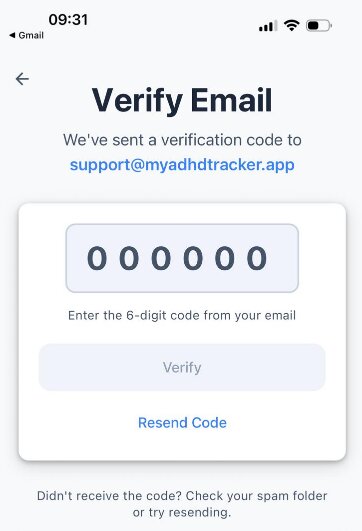
We send a 6-digit code to that address. Type it into the app. It is a code rather than a link, so there is nothing in the email to tap.
If it has not arrived
- • Check your spam or junk folder
- • Give it two or three minutes
- • Tap Resend code in the app
Codes expire after an hour. If yours has, sign in with your email address and password and the app will offer you a fresh one.
That is the account done. Next comes setting up: a run of short screens that shape the app around you.
If a clinic invited you
Your clinic sends you an invitation email with everything you need. You still make the account yourself, and it takes a couple of minutes.
Find your invitation
Look for an email from Acumi with your clinic's name on it. It contains two things:
- • A 6-digit invite code, and a link that carries the same code for you
- • Links to install Acumi from the App Store or Google Play
Can't find it? Check your spam or junk folder, or ask your clinic to send it again.
Install Acumi, then open the link
- 1. Install Acumi from the App Store or Google Play
- 2. Go back to the invitation email on the same phone and tap its link. Acumi opens with your code already filled in
- 3. Tap Continue
Or type it in. If the link does not open the app, start Acumi yourself and tap "Have an invite code?" at the bottom of the first screen. That opens Join your clinic, where you type the 6 digits from the email.
Create your account
Your code identifies you to your clinic, so the account is tied to the address they invited. Choose a password, then type it again to confirm.
Your password needs:
- • At least 12 characters
- • One uppercase letter (A-Z)
- • One lowercase letter (a-z)
- • One number (0-9)
Then tap Create account.
Confirm your email address
We send a 6-digit code to that address. Type it into the app. It is a code rather than a link, so there is nothing in this email to tap.
If it has not arrived
- • Check your spam or junk folder
- • Give it two or three minutes
- • Tap Resend code in the app
Codes expire after an hour. If yours has, sign in with your email address and password and the app will offer you a fresh one.
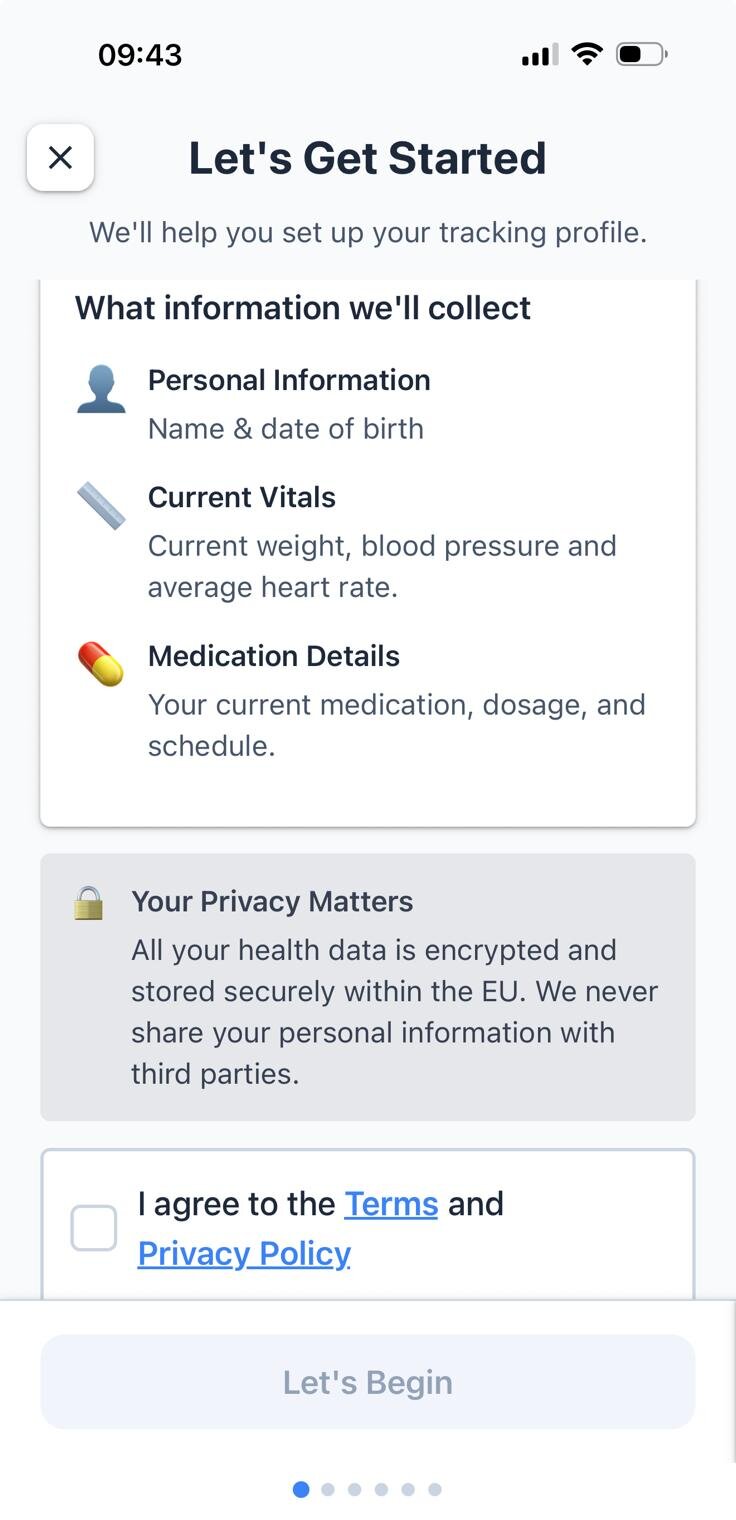
That is the account done. Next comes setting up: a run of short screens that shape the app around you. Because your clinic has already told us where you are with your treatment, you get one screen fewer than everyone else.