Completing Onboarding
Personalise your Acumi experience
If you signed up yourself
Setting up runs as a series of short screens, one question at a time. It takes a few minutes, and nothing here is permanent homework: almost all of it can be changed later in Settings.
In a hurry?
Partway through, Acumi asks how much setting up you actually want to do. Choose Go with the flow and it picks sensible defaults and takes you straight to the end. You are not missing anything you cannot come back to.
What it asks, in order
-
Welcome
A short hello, and two tick boxes: the terms and privacy policy, and separately whether your recorded data may be used anonymised to improve the app. Worth reading rather than tapping past.
-
How Acumi works
One screen on what the app is actually for, so the questions that follow make sense.
-
About you
Your name and date of birth.
-
What to call you
The name Acumi uses when it talks to you. It can be anything you like.
-
Where you are with ADHD treatment
Two quick questions: where you are with ADHD - just exploring, strongly suspecting it, waiting for an assessment, or diagnosed - and, if you are diagnosed, whether you are taking medication and how settled you are on it. It changes how the medication screen is worded and whether reminders start switched on.
You can skip it, and you can change it whenever you like: it lives in Settings under Where you are.
-
What you want out of Acumi
What you are hoping to get from it, and which of the optional support tools you would like switched on.
-
Your medication
Search for what you take, then set the dose and the time - or mark it as something you take when you need it rather than on a schedule. This is the longest screen. If you take nothing, skip it and move on.
-
Apple Health or Health Connect
Connect it and some of your record fills itself in: steps, sleep, resting heart rate, active minutes, weight. Skip it and you simply type what you want to keep instead.
-
Locking the app
Whether to put Face ID, Touch ID or your fingerprint in front of Acumi. This screen only appears if your phone already has one of those set up.
-
How much setting up you want to do
The Go with the flow question above. Answer it either way and you end up somewhere sensible.
-
How Acumi looks
Light or dark, text size, and a rounder font if that reads more easily. You only see this one if you chose to set things up your way, and it is all in Settings under Accessibility afterwards.
-
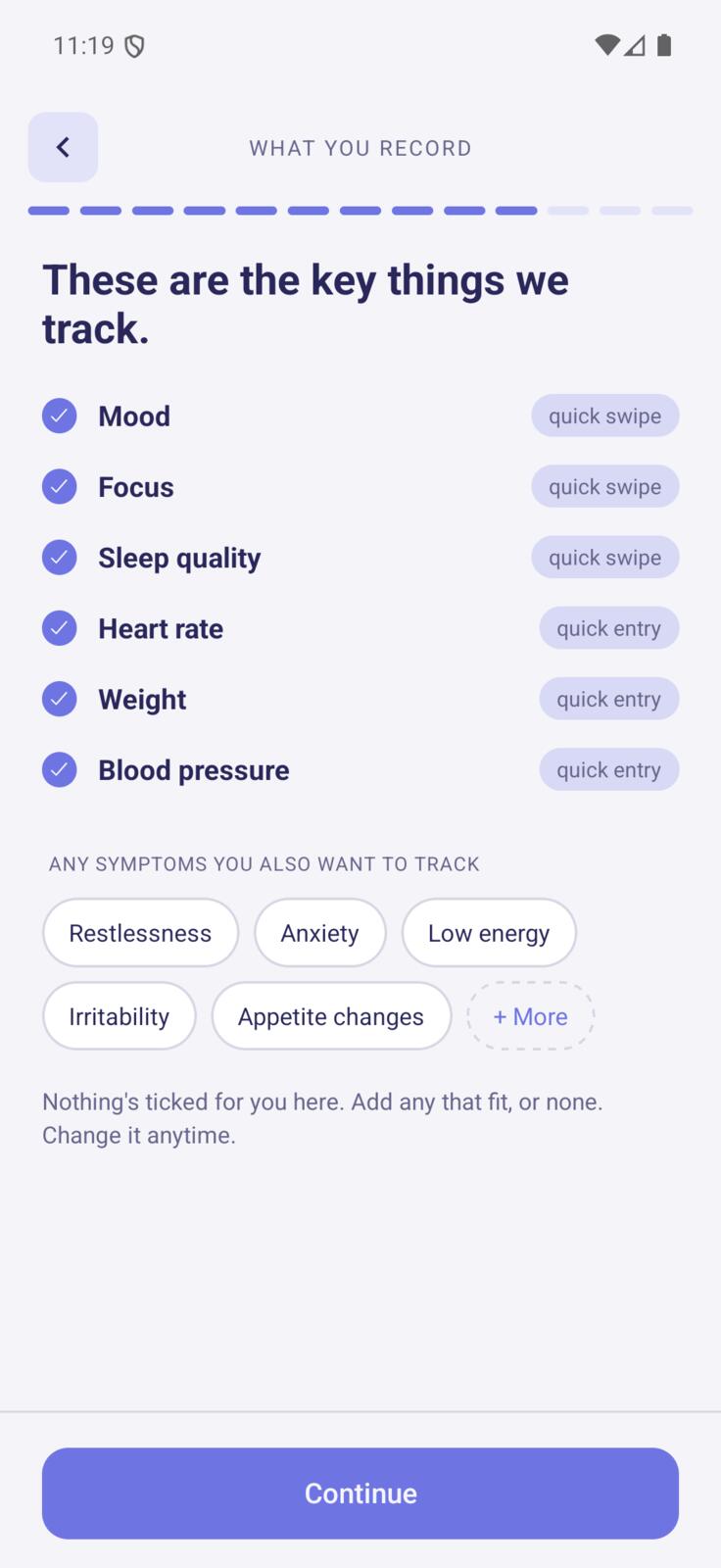
What you record each day
The handful of things you want to keep an eye on. Anything a connected device fills in for you is marked as such, so you can tell it apart from what you typed.
-
How Acumi talks to you
Three quick preferences: whether Acumi talks to you playfully or plainly, whether your ratings show as words, waves or weather, and whether you want streaks at all. All three live in Settings afterwards.
-
Done
A short recap of what has been set up, with each line tappable if you want to change something before you finish. Then it saves and drops you on the Today screen.
Day one is one check-in. Open the check-in and answer the two dials: how your focus has been, and how you slept. Under a minute. How you are feeling belongs to the journal rather than the check-in, so it is there when you want it, not asked of you every day. The charts and connecting a watch can all wait until you feel like exploring.
If a clinic invited you
Setting up runs as a series of short screens, one question at a time. It is the same run as everyone else's, with one screen left out: your clinic has already told us where you are with your treatment, so Acumi does not ask you again.
It takes a few minutes, and nothing here is permanent homework: almost all of it can be changed later in Settings. Partway through, Acumi asks how much setting up you actually want to do - choose Go with the flow and it picks sensible defaults and takes you straight to the end.
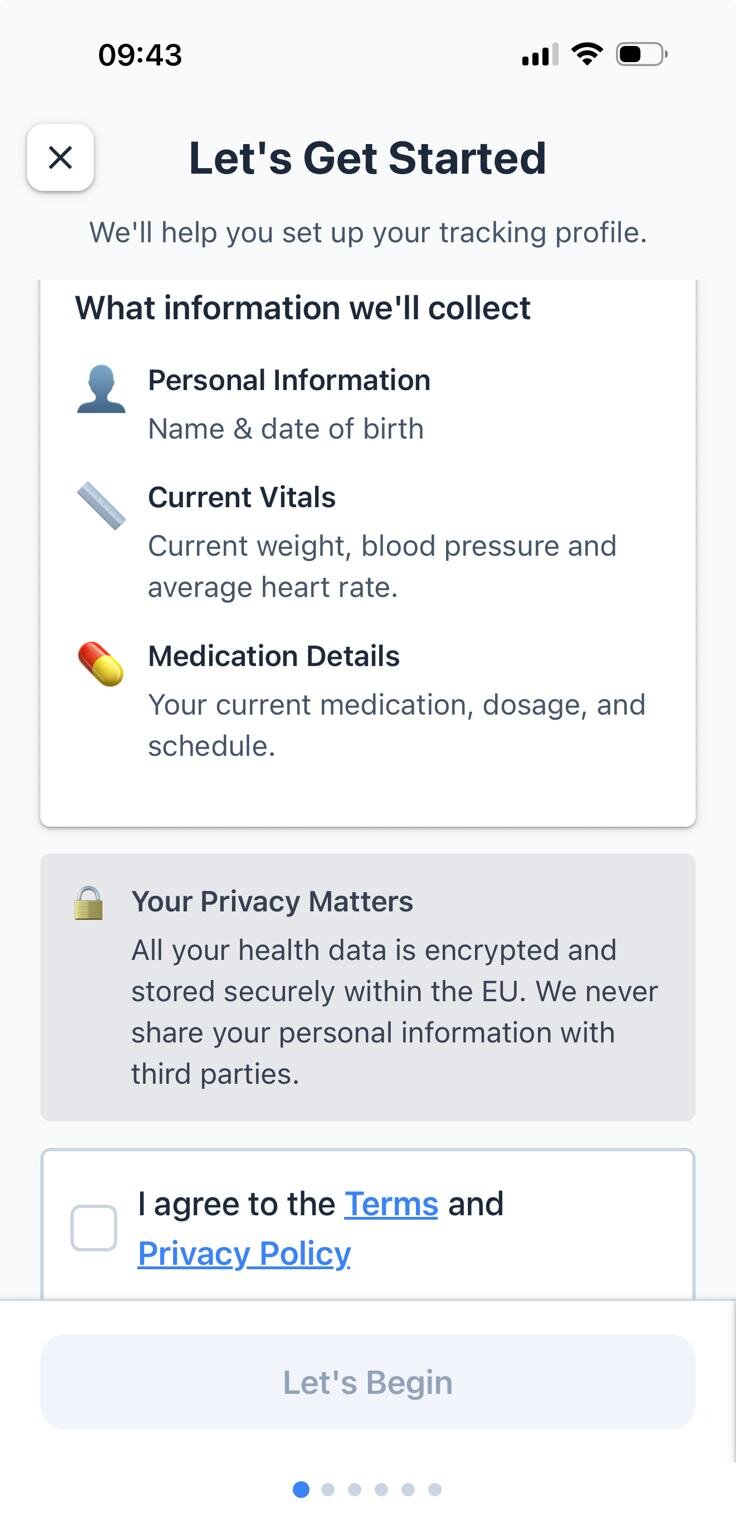
Welcome
A short hello, and the two tick boxes. Worth reading rather than tapping past.
What you agree to:
- • The Terms of Use and Privacy Policy, both linked on the screen
- • Separately, whether your recorded data may be used anonymised to improve the app
The second one is optional and sits on its own tick box, so you can agree to the terms without agreeing to that.
Tap "Get started" when you are ready.
Your data is secure: All data is encrypted and stored within EU data centres. We never share your information with third parties.
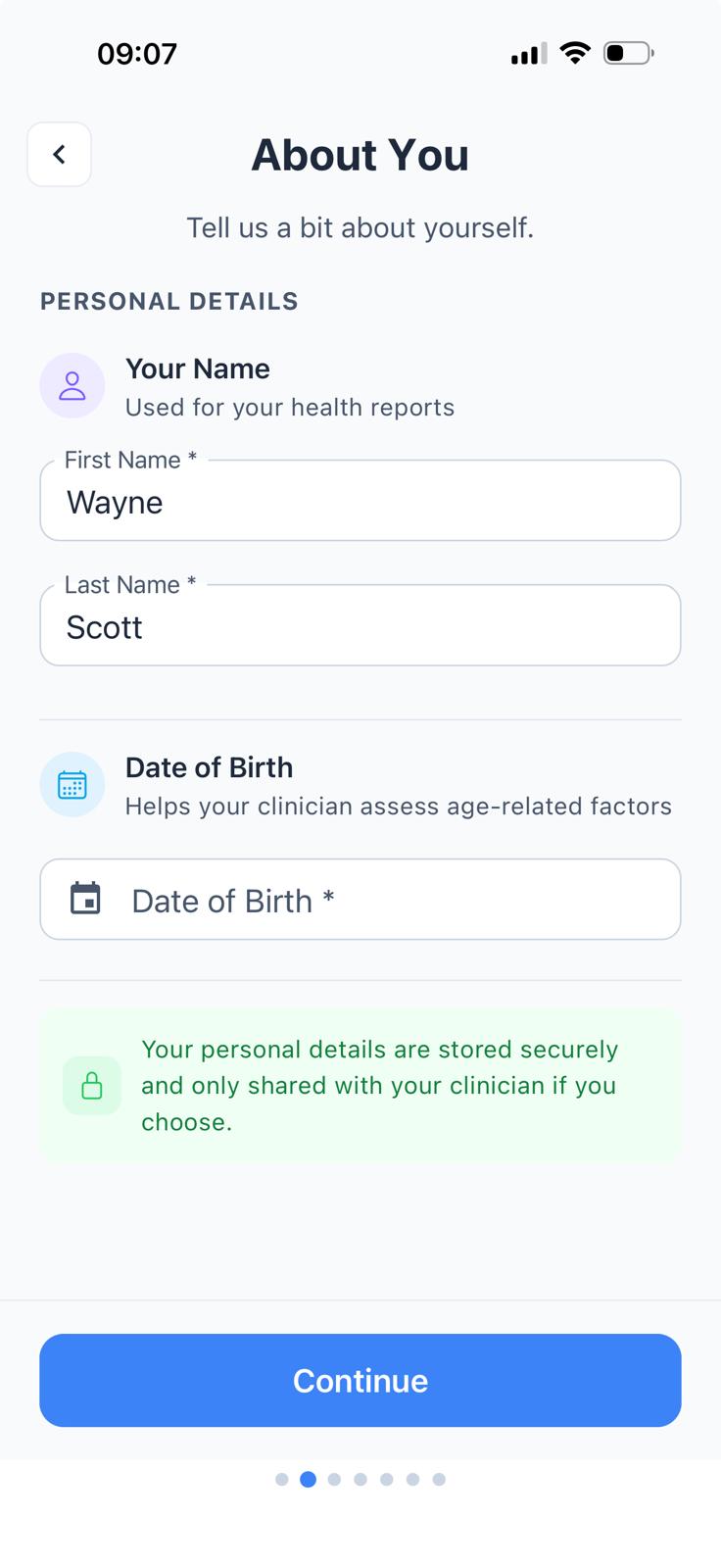
About You
Your details, so the app can set itself up around you and your record matches your clinic's.
What it asks for:
- First name As it appears on your clinic records
- Last name Your surname or family name
- Date of birth Optional. Tap Add to set it, or add it later in Settings
Then tap "Continue". The next screen asks what you would like Acumi to call you, which can be anything you like.
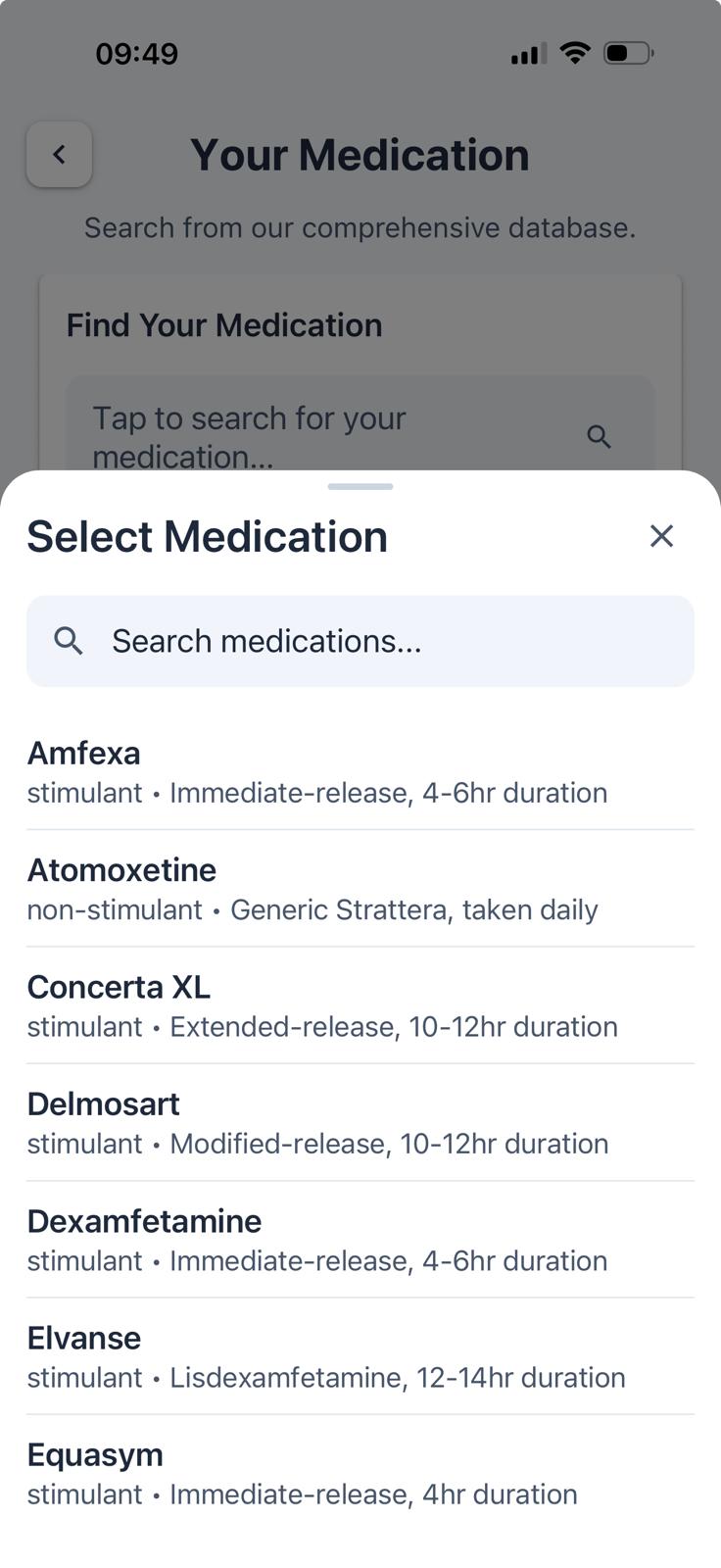
Your Medication
Add what you take, so Acumi can remind you and keep a record of your doses. If you take nothing, skip it and move on.
Step by step:
- 1. Tap "Add medication"
- 2. Start typing the name, by brand or generic (for example "Elvanse", "Concerta", "Ritalin")
- 3. Tap yours in the list. Common ADHD and mental health medicines are grouped at the top; below that is the full NHS medicines list
- 4. For a controlled medicine, confirm it was prescribed to you
Can't find yours? Tap "Not there? Tell us and we'll add it" under the search box.
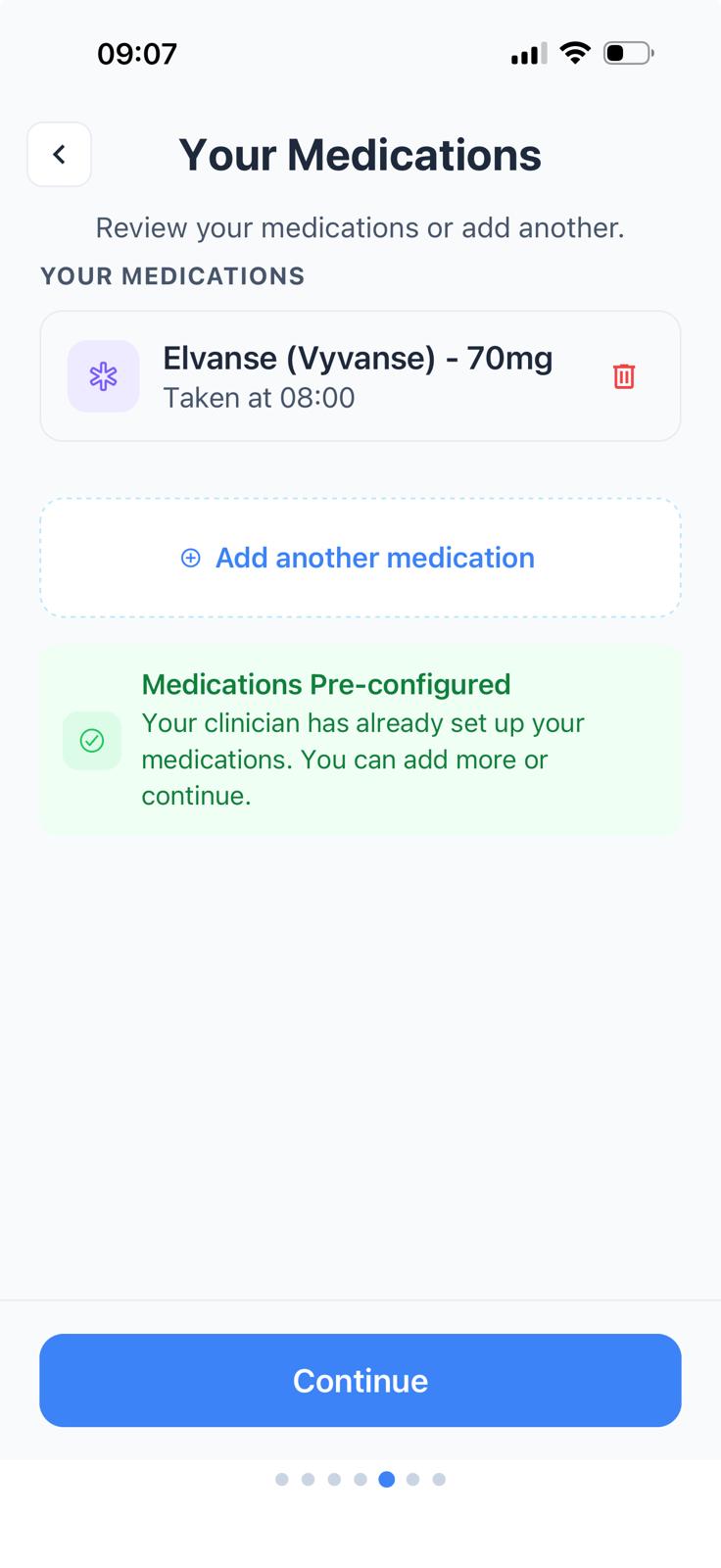
How Much, and When
Set the dose and the time for each medicine you added.
For each medicine:
- At set times Pick a time, then the amount. Common doses appear as buttons, or type your own
- When I need it For anything you take as and when, rather than on a schedule
- Every day On by default. Turn it off if you only take it on certain days
Tap "Add another time" for a second dose, then "Save".
Back on the list, "Add medication" adds another and the bin icon removes one. Tap "Continue" when you are done.
Your Watch, and Locking the App
Two questions about your phone, both optional.
Apple Health or Health Connect
Connect it and part of your record fills itself in: heart rate and HRV, sleep, steps and activity, weight and blood pressure. It works with Apple Watch, Fitbit, Oura and others. Tap "Not now" to skip, and you simply type what you want to keep instead.
Locking the app
Whether to put Face ID, Touch ID or your fingerprint in front of Acumi. This screen only appears if your phone already has one of those set up; if it does not, you will not see it at all.
Either way, you can change your mind. Health Connect and Apple Health live in Settings under Health data, and both can be turned on or off at any time.
Making It Yours
Acumi then asks how much fine-tuning you want to do. Go with the flow takes sensible defaults and jumps to the end. Set it up my way walks you through the rest:
- How Acumi looks Light or dark, text size, and a rounder font if that reads more easily
- What you record The handful of things to keep an eye on. Anything a connected device fills in for you is marked as such, so you can tell it apart from what you typed
- How Acumi talks to you Playful or plain
- How ratings look As words, waves or weather
- Streaks Whether you want a streak count on your home screen at all
All of them live in Settings afterwards, so neither answer shuts a door.
Done
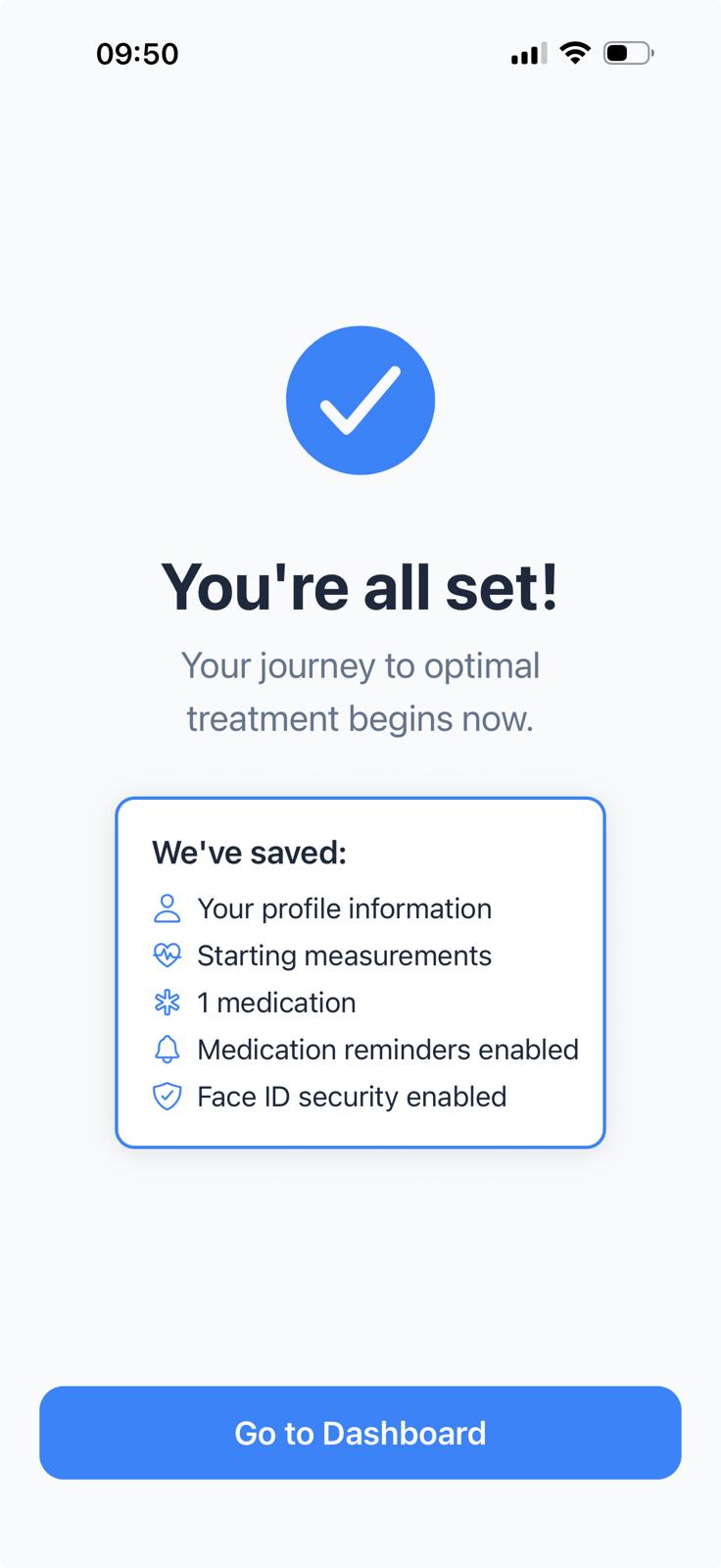
A short recap of what has been set up, with each line tappable if you want to change it before you finish.
What it shows:
- • The outcomes you chose
- • Your medication and reminders
- • The voice you picked
- • How your ratings will look
- • Whether streaks are on
Tap "Finish & get started" and Acumi saves everything and takes you to the Today screen.
Day one is one check-in. Open the check-in and answer the two dials: how your focus has been, and how you slept. Under a minute. The journal, the charts and connecting a watch can all wait until you feel like exploring.