Daily Use
Learn how to use Acumi every day
Now that you are set up, here is how to use Acumi day to day. Four tabs sit along the bottom - Today, Journal, Insights and Community - and Settings lives behind your initials in the top right.
Today - What's In Front Of You
Your day, in one screen
Today shows what is worth doing now and nothing else. When there is nothing left, it says so and stops asking.
What you'll see:
- • A greeting - by the name you chose, in the voice you picked
- • Messages - anything Acumi has sent you
- • Today's Actions - the doses still to record. Once they are done it becomes "You're all caught up", with a Done today line you can open if you want to check
- • When you have a minute - optional suggestions: a check-in, a journal note, an appointment to record, someone to add to your team. Each has an × to dismiss it
- • The pink + button - the quickest way to record anything, from any tab
Settings is not a tab. Tap your initials in the top right of any screen to open it.
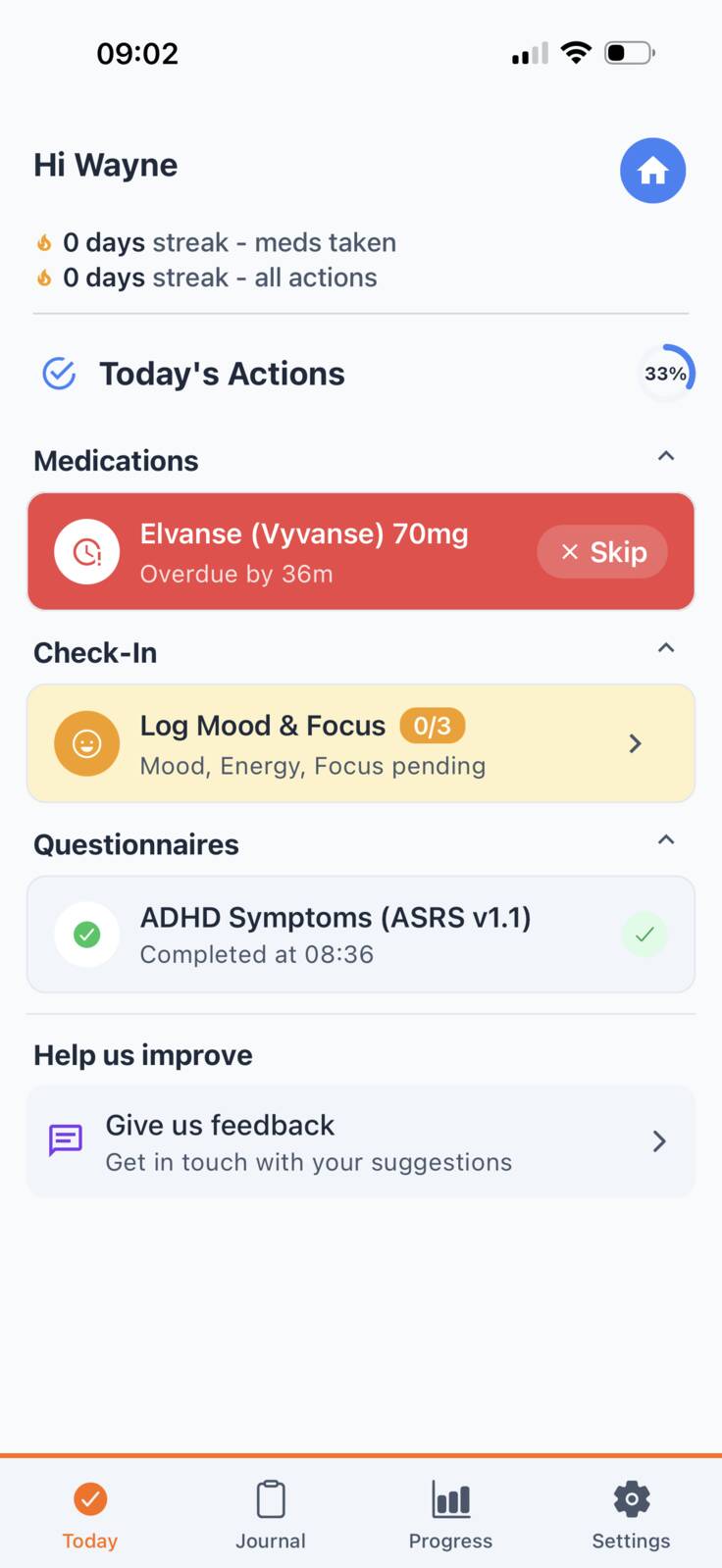
Recording a dose
Tap the medicine under Today's Actions and the Record medicines sheet opens.
How to record:
- 1. Tick the doses you want to record. They are ticked for you
- 2. Taken at defaults to now. Tap the pencil to change it if you took it earlier
- 3. Tap "Record 1 taken"
Not yet? Snooze at the bottom of the sheet asks you again later. Skip on the Today card sets it aside for the day. Neither counts against you.
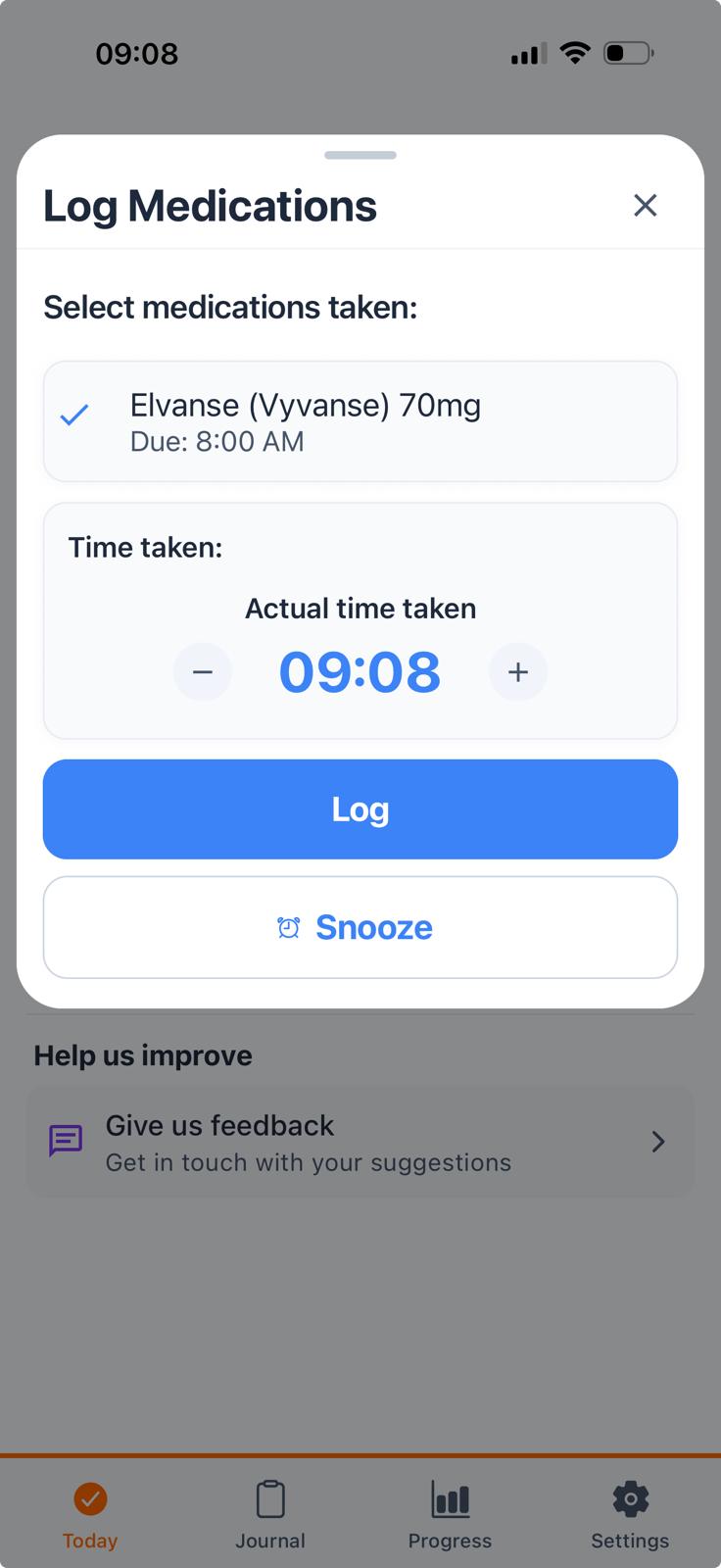
Journal - One Day At A Time
The Journal is your record, a day at a time. Everything you record lands here as a card on that day's timeline, with the time it happened. Kept over a few weeks, this is what makes a change in your treatment visible rather than remembered.
What you can record:
- Check-in Two dials, focus and sleep quality, plus how long you slept. Vitals - heart rate, weight, blood pressure - are tucked behind a heading if you want them
- Symptoms Whatever you chose to keep an eye on during setup, and you can add more at any time
- Reflection A line about your day, and how you are feeling. This is where mood lives, not in the check-in
- Medication A dose recorded outside its usual time
- Appointment So reviews sit alongside everything else
Finding a day:
- 1. Use the date ribbon along the top, or tap the date itself to jump further back
- 2. The pills under the ribbon filter that day - Check-in, Symptoms, Medication and so on. They only show what that day actually holds
- 3. Tap a card to open it and change what you recorded
Ratings run one way. Symptoms are rated from none to major, so a higher rating always means more of it. Focus and sleep are the other shape: they run from scattered to sharp, and restless to deep.
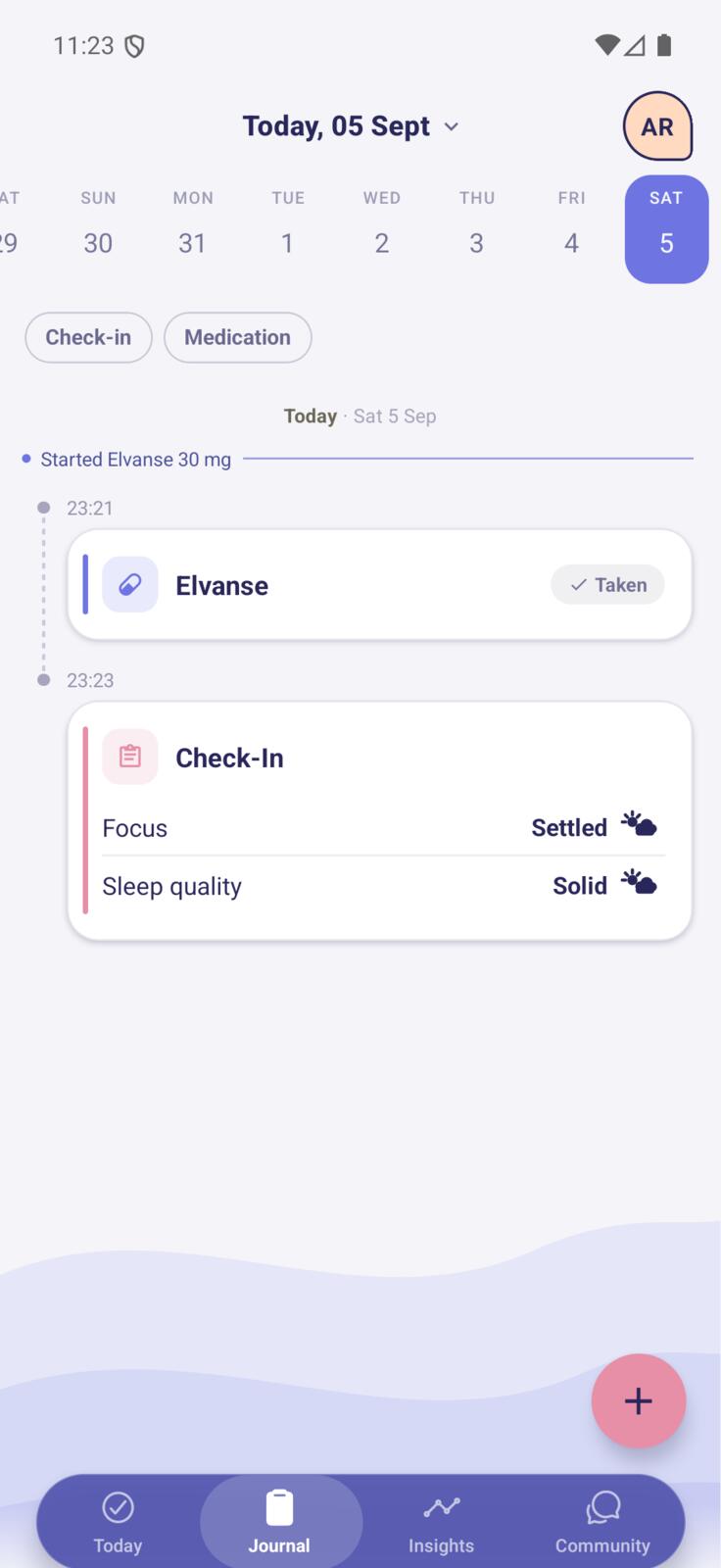
The daily check-in
Tap the pink + and choose Check-in. It is two dials and a sleep length, and it takes well under a minute.
- Focus How concentrating has gone today, from scattered to sharp
- Sleep quality How you got on last night, from restless to deep
- Sleep duration Roughly how long, nudged an hour at a time
You can check in more than once in a day. A morning and an afternoon are recorded as two, not merged into one, which matters if a dose wears off.
Insights - What Your Record Shows
Insights has two tabs, Progress and Patterns, and a period control in the corner for how far back to look.
- Progress A card per thing you record, each with its own small chart. Tap one to open it full size
- Patterns Where two things you record have moved together often enough to be worth mentioning
Nothing here on day one, and that is deliberate. Each thing you record needs about three days of its own before it is charted, so the tabs fill in gradually rather than switching on all at once. Until then you will see a line saying so.
Insights describes what your record shows. It does not tell you what to do about it - that conversation belongs with a clinician.
Your Team - Sharing A Report
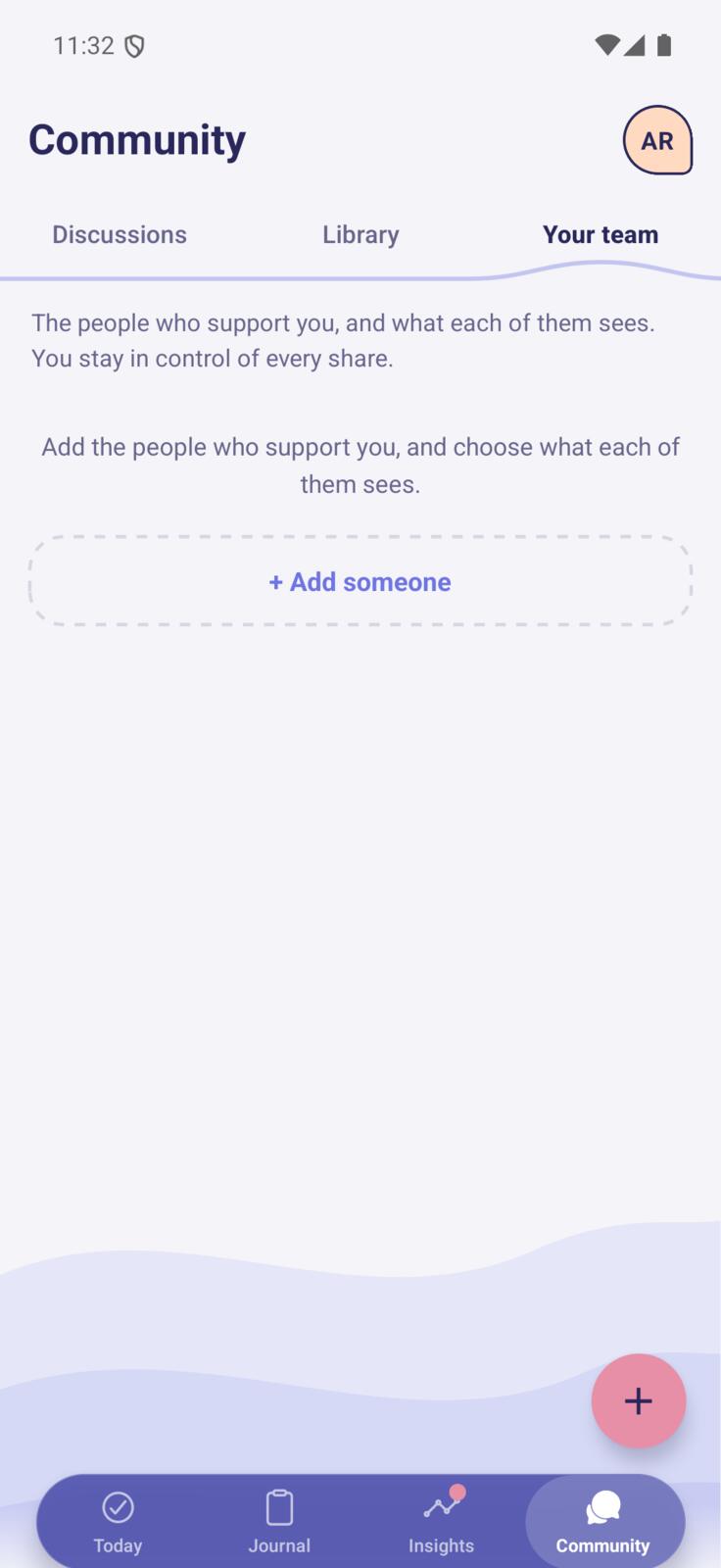
Reports are shared with a person, not published. Add the people who support you under Community > Your team, and choose what each of them sees.
To share a report:
- 1. Open the Community tab and choose Your team
- 2. Tap "+ Add someone" if they are not there yet
- 3. Open that person and tap "Generate & share report"
You stay in control of every share. Each person sees only what you chose for them, and a report you have shared can be taken back.
Settings - Behind Your Initials
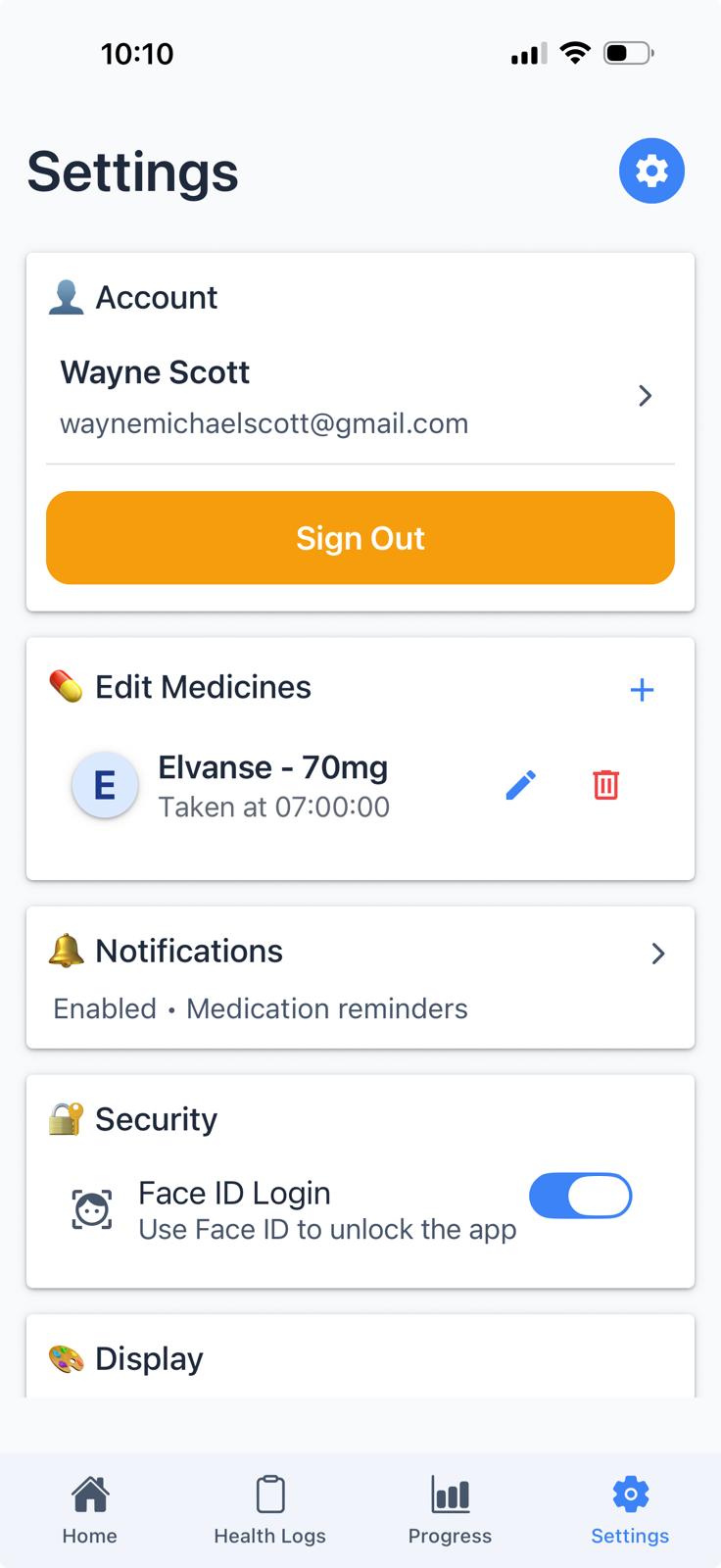
Tap your initials in the top right of any screen. Almost everything you answered during setup can be changed here.
What you can do:
- Your details Your name, and the email you sign in with
- Where you are Your ADHD and treatment stage, changeable whenever it changes for you
- Medicines Add one with +, change a dose or time with the pencil, remove one with the bin
- Notifications Dose reminders and the daily check-in nudge
- Your outcomes What you are hoping to get out of the app
- Display Voice, streaks, how ratings look, and kg or lbs
- Health data Apple Health or Health Connect, on or off
- Accessibility Light or dark, text size and font
- Hard moments An optional set of gentle tools, off unless you turn it on. Yours alone to use
Sign out and Delete account are both here too.
Quick Reference
| Task | Where to Go |
|---|---|
| Record a dose | Today > tap the medicine under Today's Actions |
| Do a check-in | The pink + button > Check-in |
| Write a reflection | The pink + button > Reflection |
| Look back at a day | Journal > date ribbon, or tap the date to jump further back |
| Change something you recorded | Journal > tap the card |
| See your charts | Insights > Progress |
| Share a report with a professional | Community > Your team > open the person > Generate & share report |
| Change a dose or its time | Your initials > Medicines > pencil icon |
| Add another medicine | Your initials > Medicines > "+" |
| Change reminders | Your initials > Notifications |
| Change text size or dark mode | Your initials > Accessibility |
| Sign out | Your initials > Sign out |